Setup, a few minutes (longer the first time)
These steps are for a Mac. On Windows? Flip the switch at the top of the page.
These steps are for a Windows PC. On a Mac? Flip the switch at the top of the page.
Have nothing installed? Perfect. This sets up everything for you, its analysis engine included. No app to drag and no account to make. On a brand-new Mac, Apple may show a one-time box asking to install its developer tools, that's expected; click Install and let it finish.
Have nothing installed? Perfect. This sets up everything for you, its analysis engine included. No app to drag and no account to make. The installer is a small indie tool and is not signed yet, so Windows or your antivirus may show a one-time warning. That is expected, and the steps below show you exactly what to click. Honest note: the Windows setup is the newest part of Cratefox. The script is fully code-reviewed but still being proven on real Windows machines (its own header says exactly that), so read every line if you like, and if anything trips, write hey@cratefox.app and it gets fixed fast.
Unlock your command
At the top of this page, type your access code into the box and click Unlock. That reveals your personal install command. No code? Cratefox is shared privately, ask whoever told you about it for one.
Open Terminal
Press ⌘ Space, type Terminal, hit Return. (It's a built-in Mac app, the black window.)
Open PowerShell
Click the Start button (or press the Windows key), type PowerShell, and click Windows PowerShell in the list. The blue window is the one you want. You do not need to run it as administrator, and it is not the older black Command Prompt; PowerShell is the blue one.
Paste the command & press Return
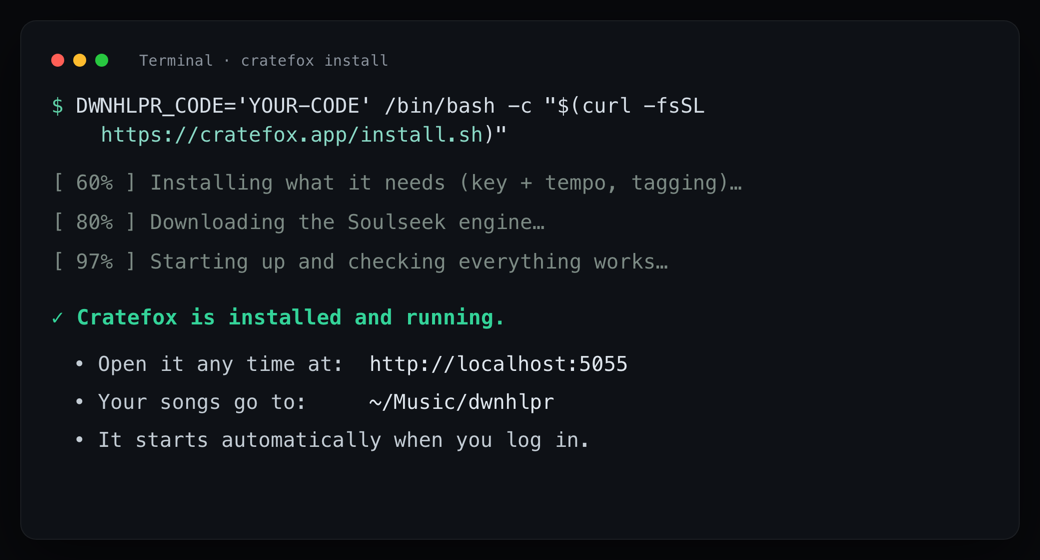
Click inside the Terminal window first, then copy the unlocked command from the top of this page and paste it (⌘ V), press Return. It sets up Cratefox's analysis engine and installs the app, stored only on your Mac. Partway through, it asks you to pick a Soulseek name for your download connection (or press Return to auto-generate one), so the connection is genuinely yours. It will also ask for your Mac password once (the same one you log in with). Important: while you type the password the screen stays completely blank, no dots, nothing moves. That's normal Mac security, not a freeze. Type it and press Return. The first install on a new Mac can take 10 to 15 minutes while it sets everything up, Terminal looks busy the whole time. You're done when you see the green line ✓ Cratefox is installed and running, and your browser opens the app by itself. If you see red text instead, nothing's broken on your Mac, take a screenshot of the whole window (⇧⌘3) and send it to whoever shared Cratefox.
Paste the command and press Enter
Click inside the PowerShell window first, then copy the unlocked command from the top of this page and paste it (right-click, or press Ctrl+V), then press Enter. It sets up Cratefox's analysis engine and installs the app, stored only on this PC. Partway through, it asks you to pick a Soulseek name for your download connection (or press Enter to auto-generate one), so the connection is genuinely yours. Heads-up, this is expected: because Cratefox is a small indie tool that is not signed yet, Windows SmartScreen or your antivirus may flash a warning. Nothing is wrong. If a blue "Windows protected your PC" box appears, click More info, then Run anyway. If your antivirus asks, choose Allow or Keep. If Windows asks permission to make changes (a Yes/No box), click Yes. The first install on a new PC can take 10 to 15 minutes while it sets everything up, and PowerShell looks busy the whole time. That is normal. You are done when you see the green line Cratefox is installed and running, and your browser opens the app by itself. If you see red text instead, nothing is broken on your PC; take a screenshot (press Windows key + Shift + S, or press PrtScn) and send it to whoever shared Cratefox.
The app opens itself
Your browser pops open at localhost:5055. Point it at your music folder, paste a playlist or drop a screenshot, hit Start. (If the page can't connect at first, wait 10 to 20 seconds and refresh, the engine is still warming up.) Done, and it auto-starts every time you log in.
Need more detail? How library matching works, what to do if the install looks stuck, and how to stop or remove Cratefox, it's all on the
Help page →